Writely Plugin
Figma Plugin · Product Design · 2026
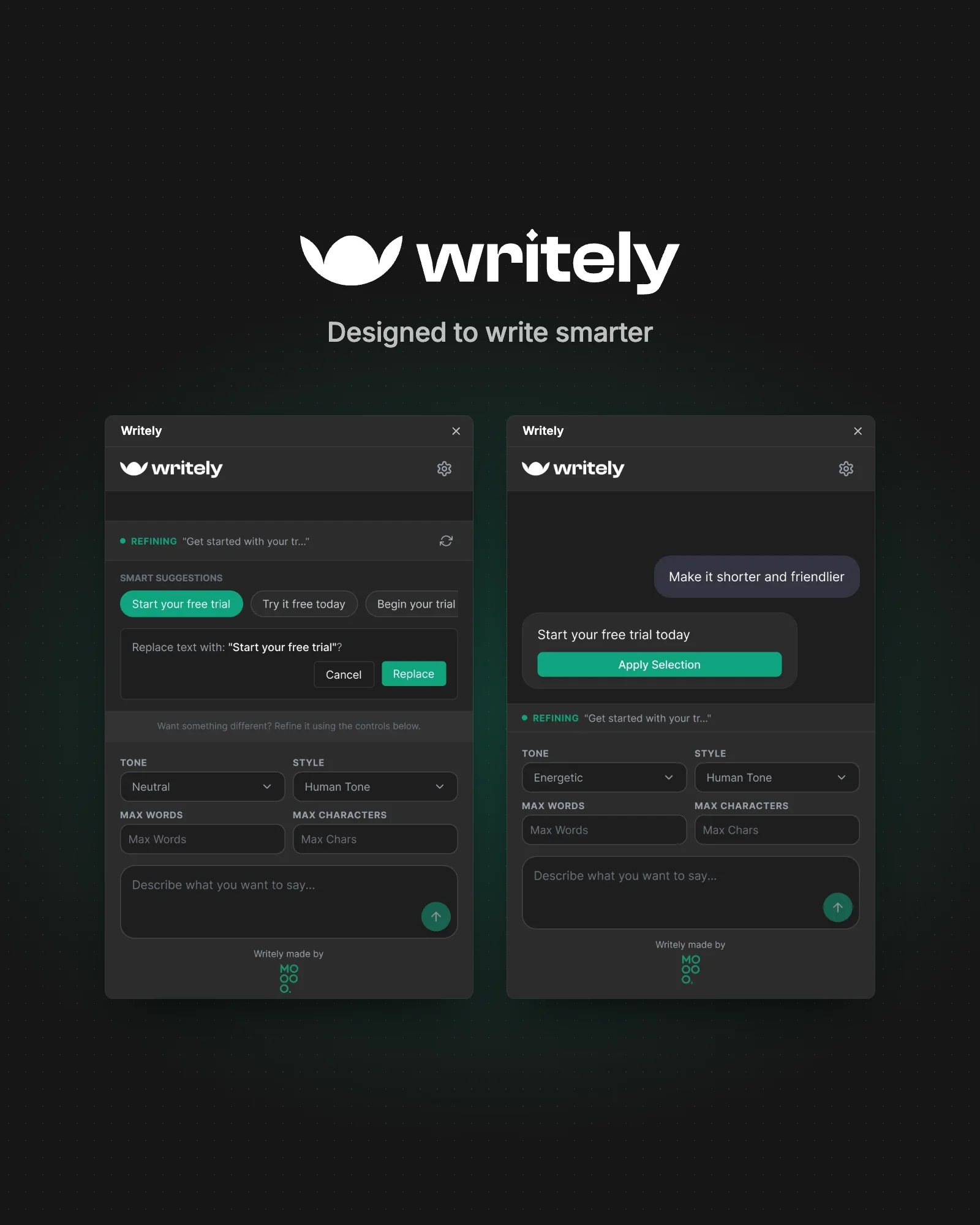
Writely is an AI UX-writing assistant inside Figma: select a text layer, get three better versions or ask for a specific change, set tone, style and length, and apply the copy straight to the design.
An AI UX-writing assistant inside Figma: select a text layer, get better copy, and apply it without leaving the design.

Overview
Words are part of the interface, but they’re usually written last and somewhere else. Writely is a Figma plugin that writes and refines microcopy where it lives: on the selected text layer.
Select a layer and Writely suggests three better versions; describe what you want and it rewrites the text to your tone, style and length, then applies it to the layer.
It runs on Google Gemini, follows Figma’s light or dark theme, and is published on the Figma Community.
Client
MOOOO. (own product)
Role
Product Designer & Developer
Platform
Figma plugin · 400 × 600 panel
Scope
Plugin design & development
Deliverables
7 states · 14 screens · launch artwork
Tools
Figma · HTML, CSS & JavaScript
In this case study
Copy is written last, and far from the design.
The problem
Writing effective UX copy usually means leaving the design to do it, and every trip out of Figma interrupts the work.
Placeholder words
Layouts are designed with “Button” and lorem ipsum, and the real wording is left for later, when the layout has already decided how much room it gets.
Context switching
Getting help means copying a label into a chat tool, explaining the screen again, then pasting the answer back and fixing the font, once for every string.
Constraints nobody states
A button label has a character budget and a product has a voice. Generic AI answers ignore both unless you write them into every prompt.
Generate and refine microcopies without breaking flow.
Better words, without leaving the layer.
The goal
Writely is for product and UX designers who write their own interface copy. It brings AI-assisted UX writing into Figma, so copy can be generated, refined and explored without leaving the workspace.
Start from the selection
The text layer is the context. No copying, no re-explaining what the string is.
Help before you ask
Useful options should appear the moment a layer is selected, no prompt required.
Make constraints controls
Tone, style and length should be set once, not typed into every request.
Never overwrite silently
The design changes only when the designer chooses an answer.
Fit Figma
One compact panel that follows Figma’s light or dark theme.
Say what to do next
When something is missing (a selection, an API key), the message should fix it, not just report it.
From a blank label to the right words.
Thinking process
The moments of writing one string, what gets in the way at each, and how the design answers it.
Pick the text
Tell the assistant which words to work on.
A chat tool doesn’t know which layer you mean or what it currently says.
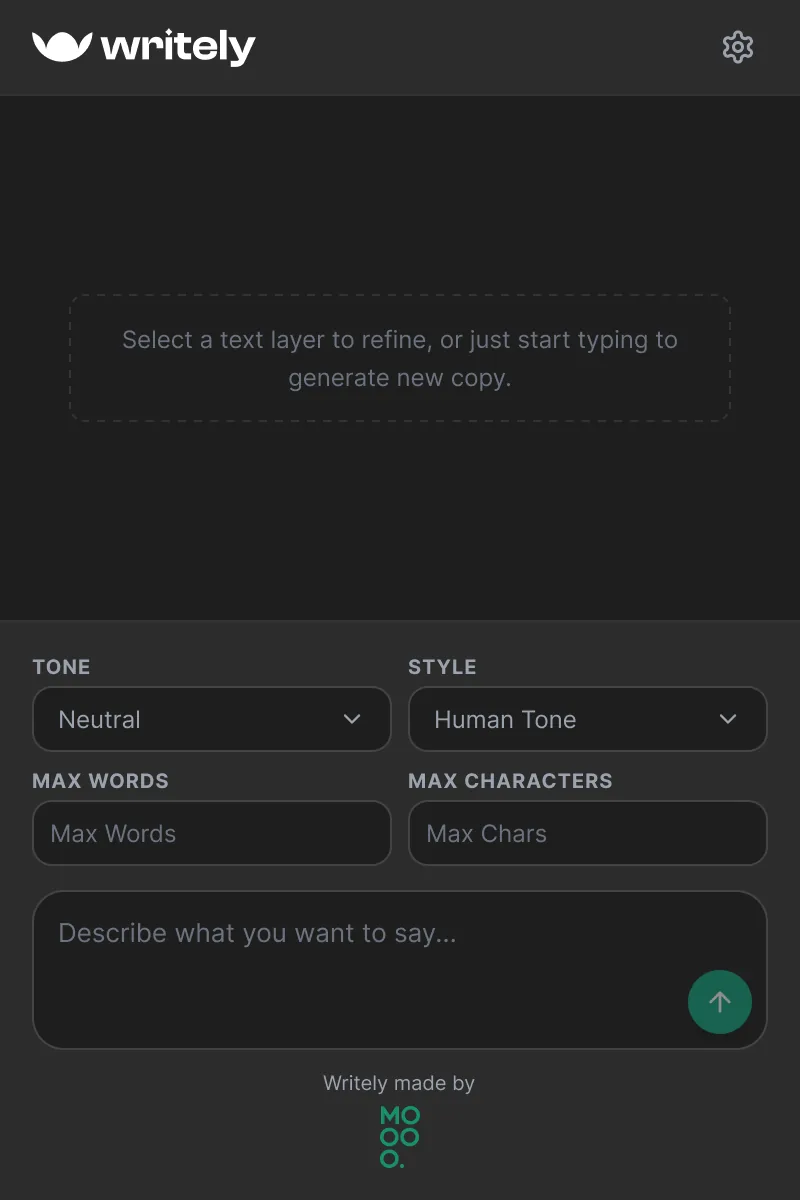
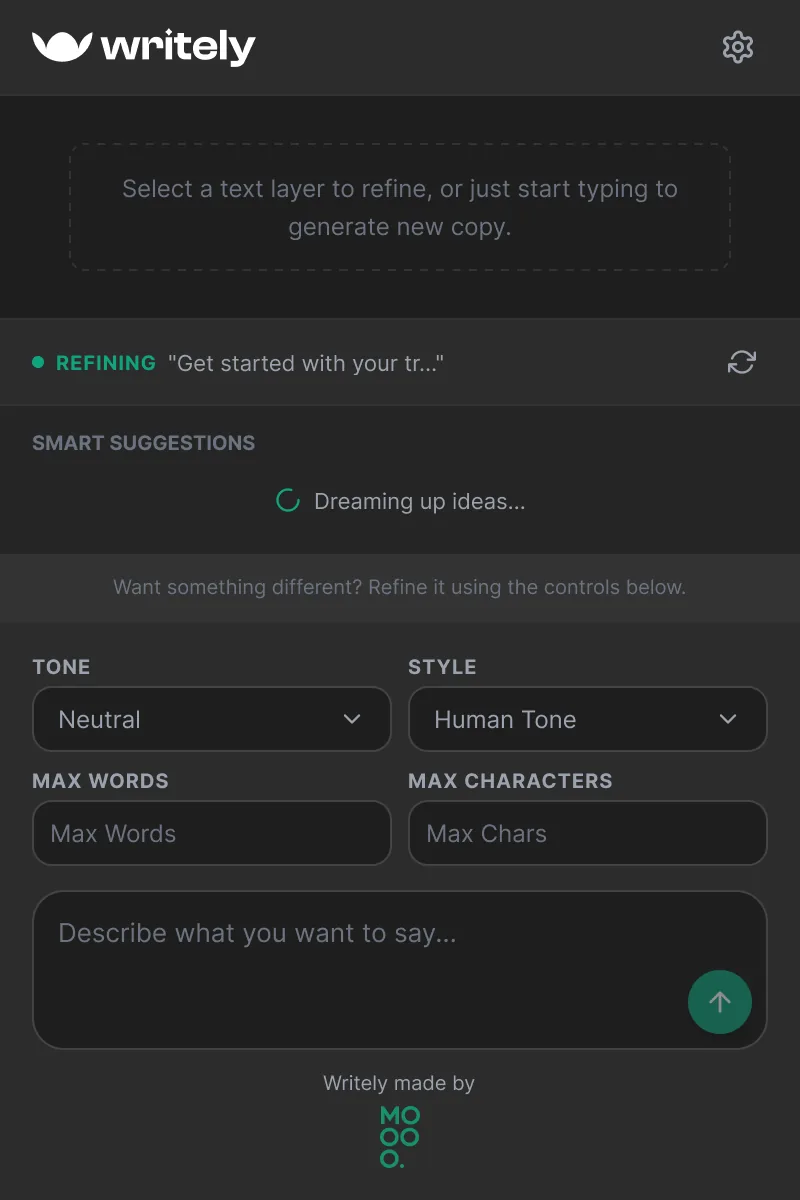
Writely reads the selected text layer and shows it in a “Refining” bar, and invites you to type if nothing is selected.
Get unstuck
See a few better options quickly.
Facing an empty prompt box is the slowest way to start.
On selection, three short variations load automatically as chips.
Choose
Try an option without losing the original.
One accidental click could overwrite the design copy.
Choosing a chip asks “Replace text with …?” with Cancel and Replace.
Be specific
Steer the copy: shorter, friendlier, more formal.
Re-typing the same tone and length rules into every prompt.
A plain-language instruction plus tone, style and limit controls that apply to every answer.
Recover
Keep going when something’s missing.
Silent failures or vague errors stop the flow.
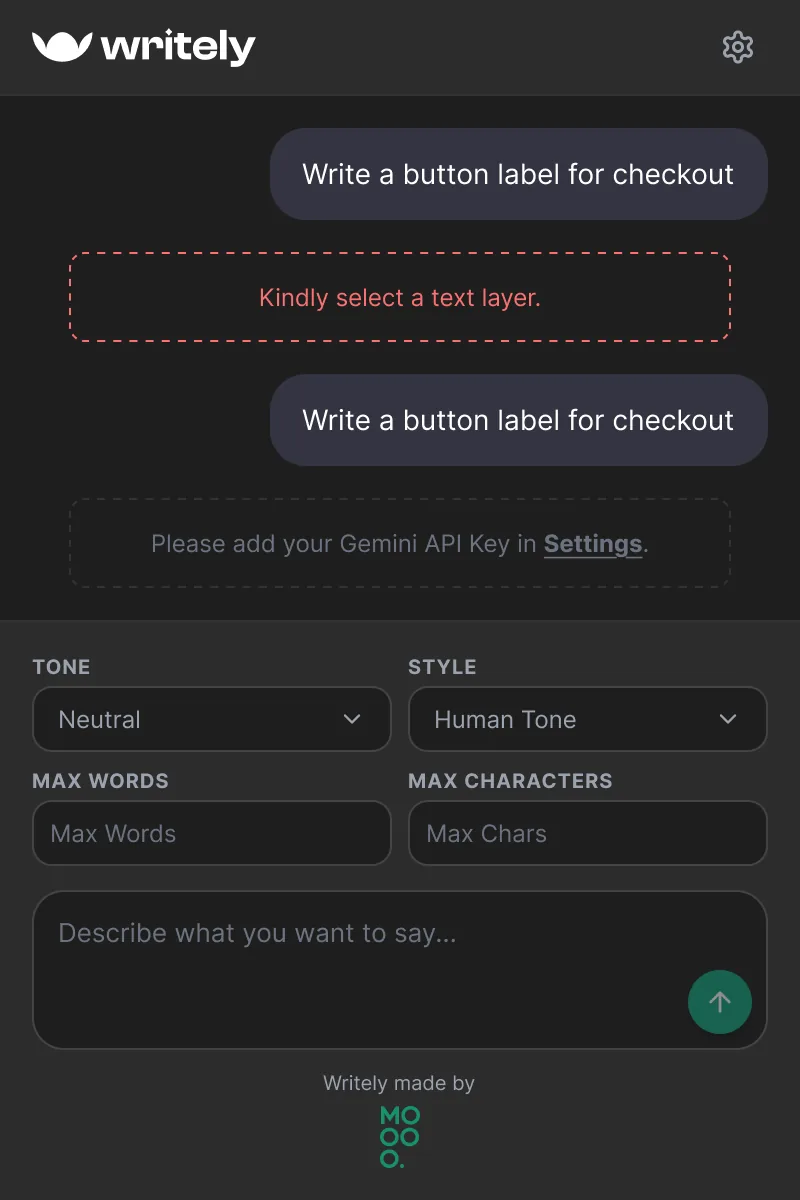
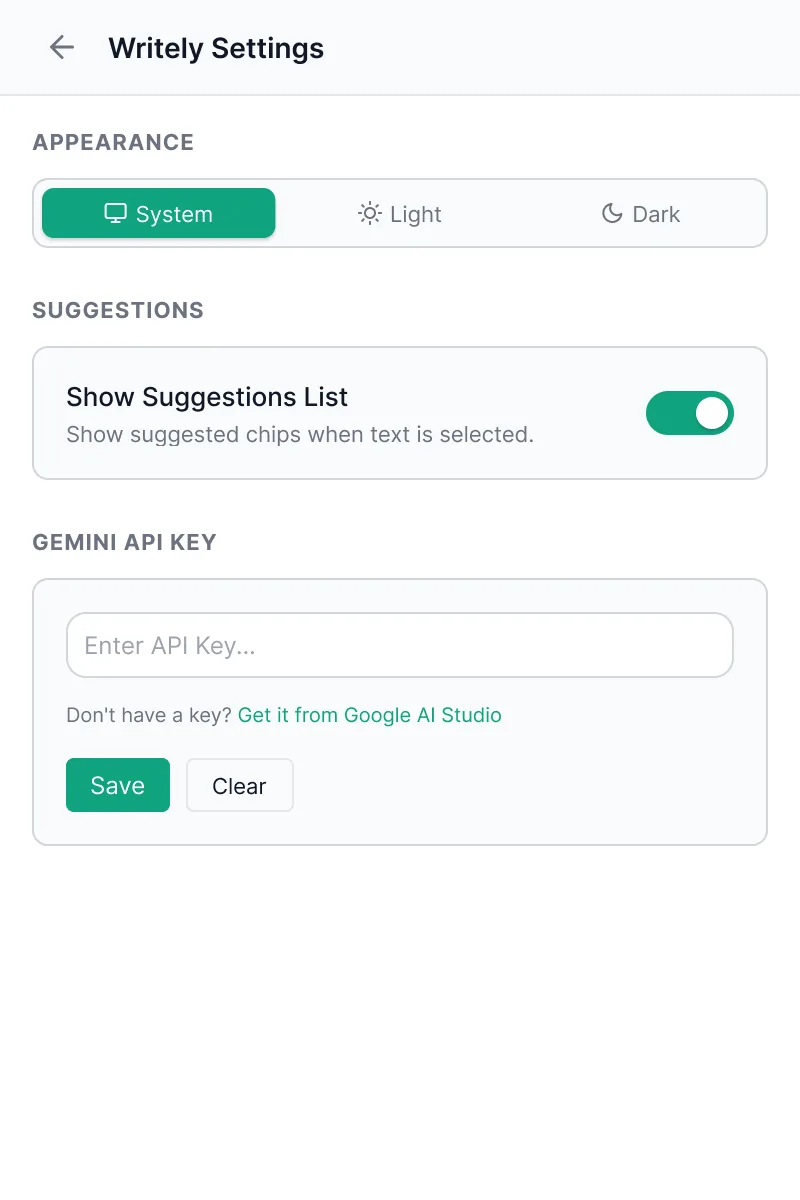
Inline messages name the fix: select a text layer, or add a key in Settings (linked).
One panel, read top to bottom.
UX strategy
The panel is ordered like the task: what you’re refining, quick options, then the controls and the prompt at the bottom, where the hands already are. Settings sit one tap away and are rarely needed.
Context
What the answer applies to
Smart suggestions
Zero-typing help
Conversation
Specific requests
Controls
Applied to every answer
Settings
Set once
Problem, decision, benefit.
Design decisions
Every part of the panel answers a specific friction in writing interface copy.
The selection is the context
An assistant that doesn’t know the current text gives generic answers and needs everything explained.
Writely listens to Figma’s selection, shows the selected text in a “Refining” bar, and sends it with your instruction as the text to refine.
You ask for the change, not for the context, and can see which text the answer is for.
Three suggestions, before you ask
Most copy only needs a nudge, and writing a prompt for it takes longer than the edit.
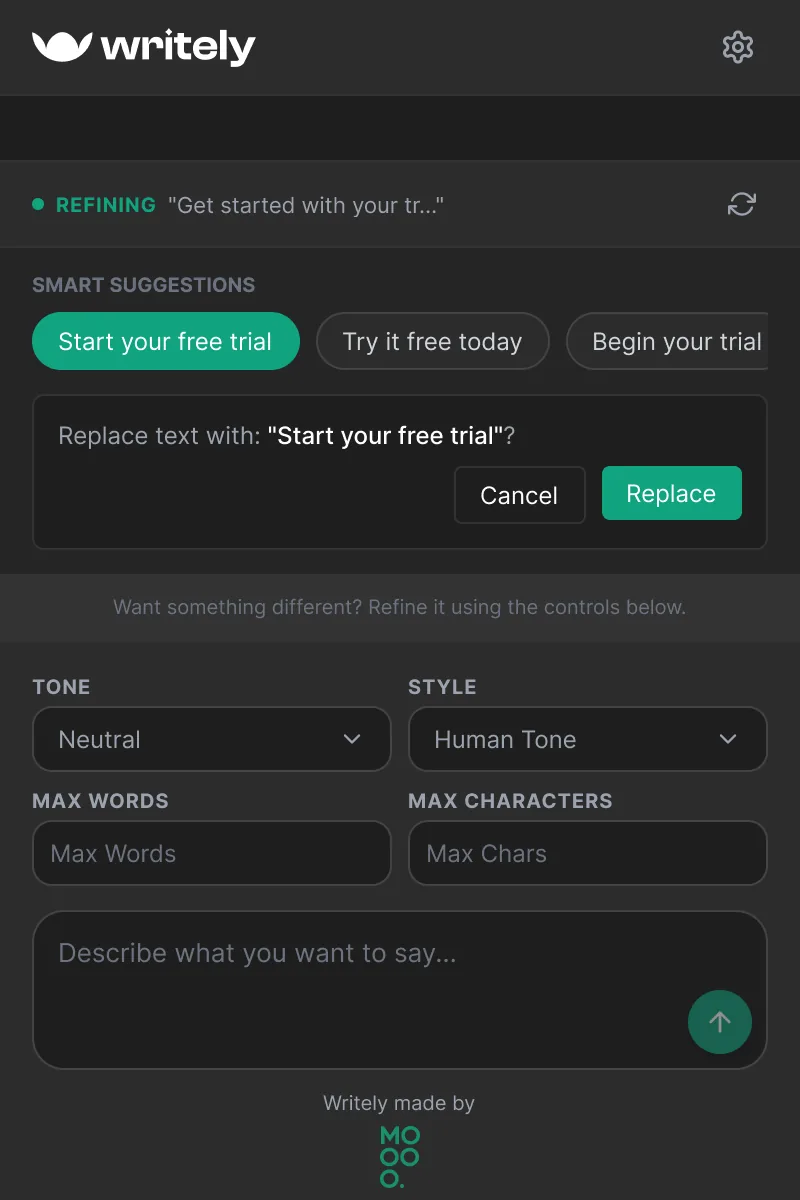
Selecting a layer loads three short variations as chips, in the chosen tone, with a regenerate button. They can be switched off in Settings.
The common case, “a better version of this”, takes one click.
Confirm before replacing
A chip is easy to click by accident, and the layer holds real design copy.
Choosing a suggestion opens a small confirmation that quotes the new text, with Cancel and Replace.
Trying options is safe; the design only changes on purpose.
Constraints as controls
Tone and length rules get lost when they have to be retyped in every prompt.
Tone (Friendly, Formal, Neutral, Energetic, Playful), style (Human or AI tone), max words and max characters sit above the prompt and are applied to every answer.
Answers fit the product’s voice and the layout’s space without prompt engineering.
An apply button that knows the selection
Pasting answers back by hand breaks fonts and loses time; applying with nothing selected does nothing.
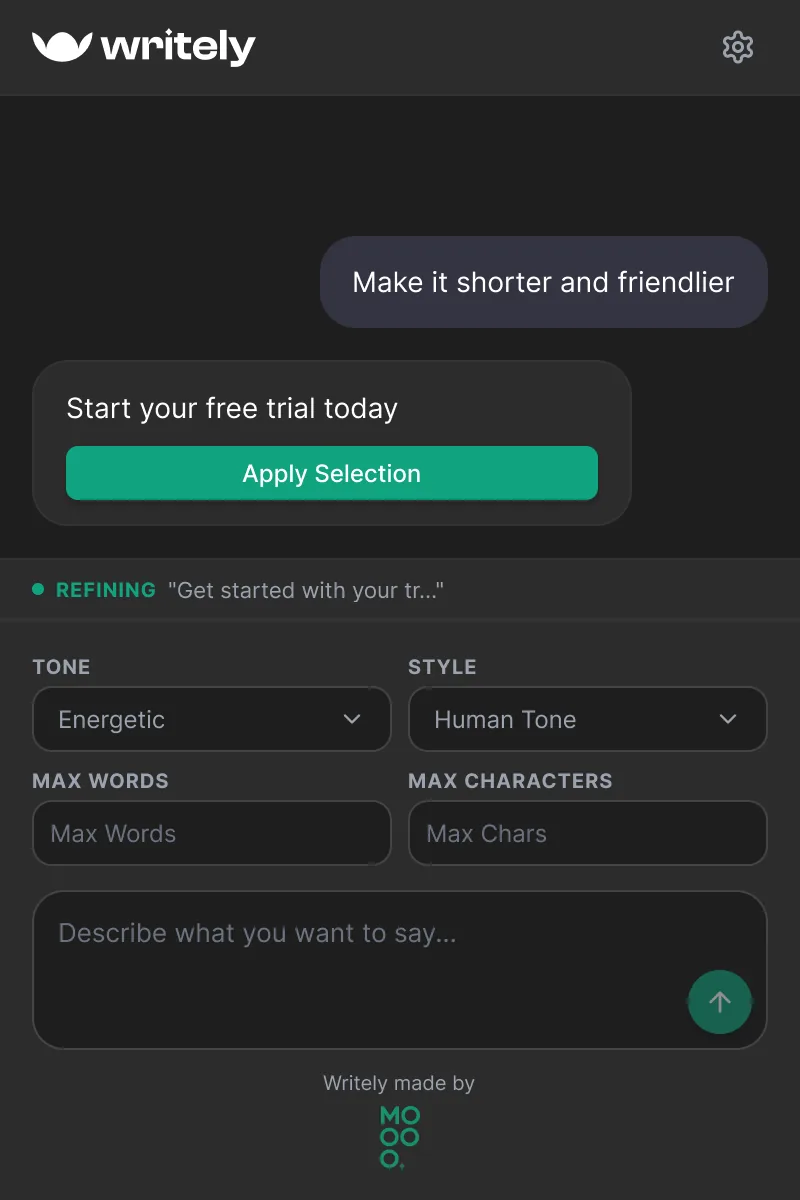
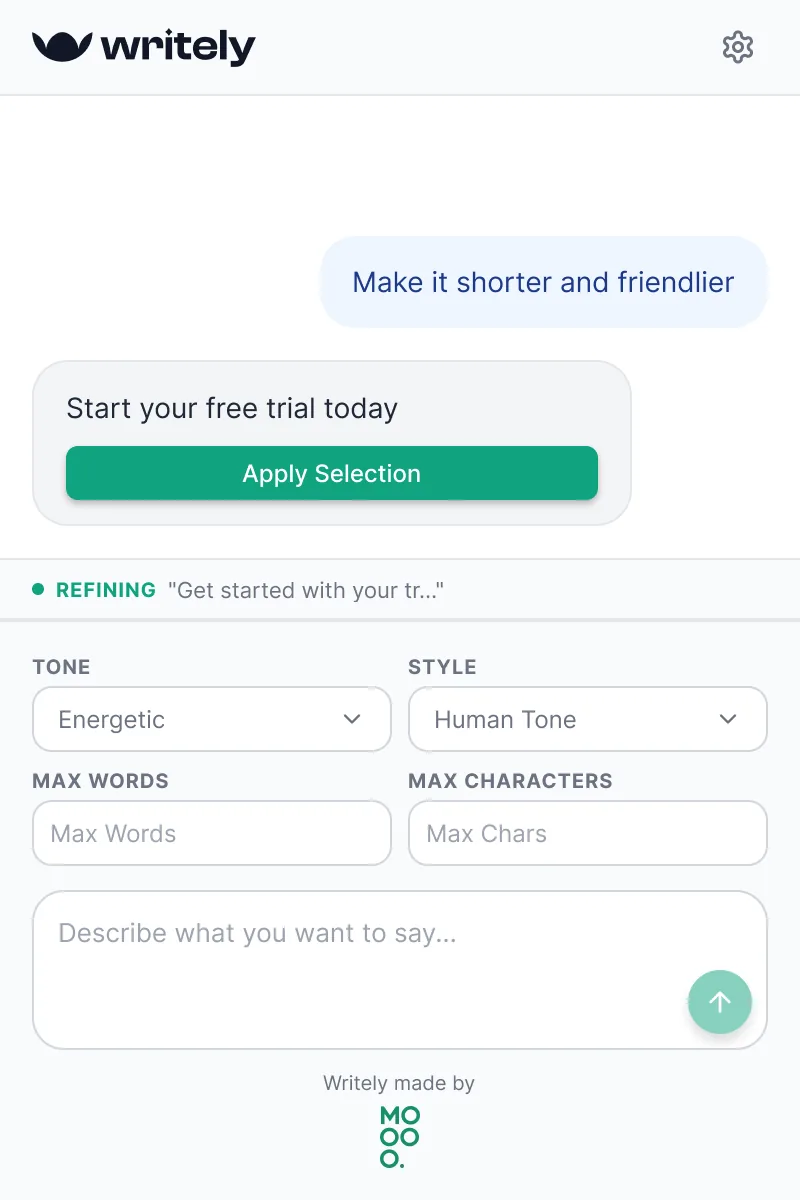
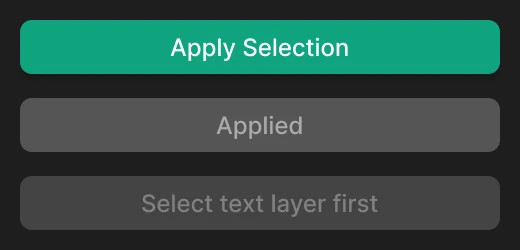
Each answer carries its own button. It reads Apply Selection when a text layer is selected, Select text layer first when not, and Applied once used. Fonts are loaded before the text is replaced.
The answer goes straight into the design, and the button always says what will happen.
Errors that tell you the fix
A failed request with no explanation stops the work.
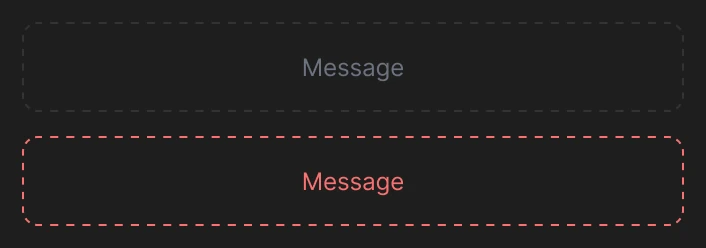
Inline messages in the conversation: a red one when no layer is selected, and a setup message with a link straight to Settings when the key is missing.
Every dead end points to the next step.
Your own key, in Figma
An AI tool needs a model, and a backend would mean accounts and another service holding your text.
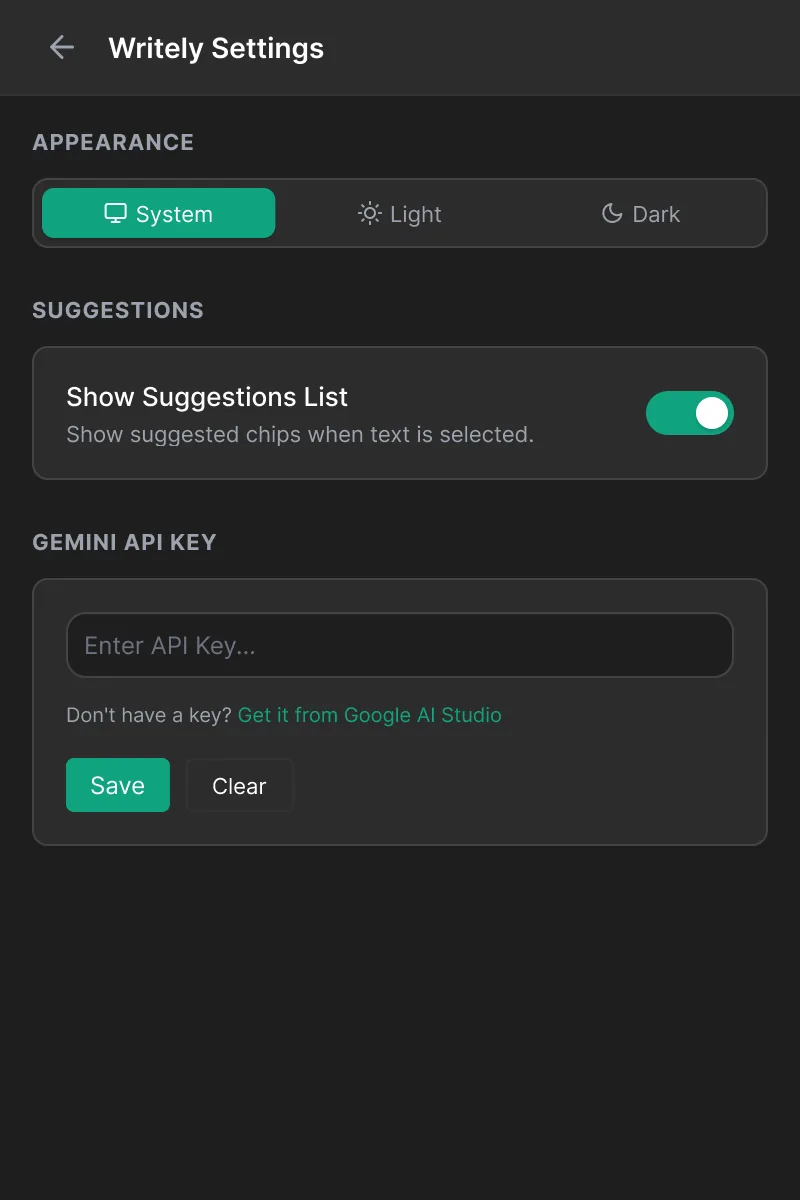
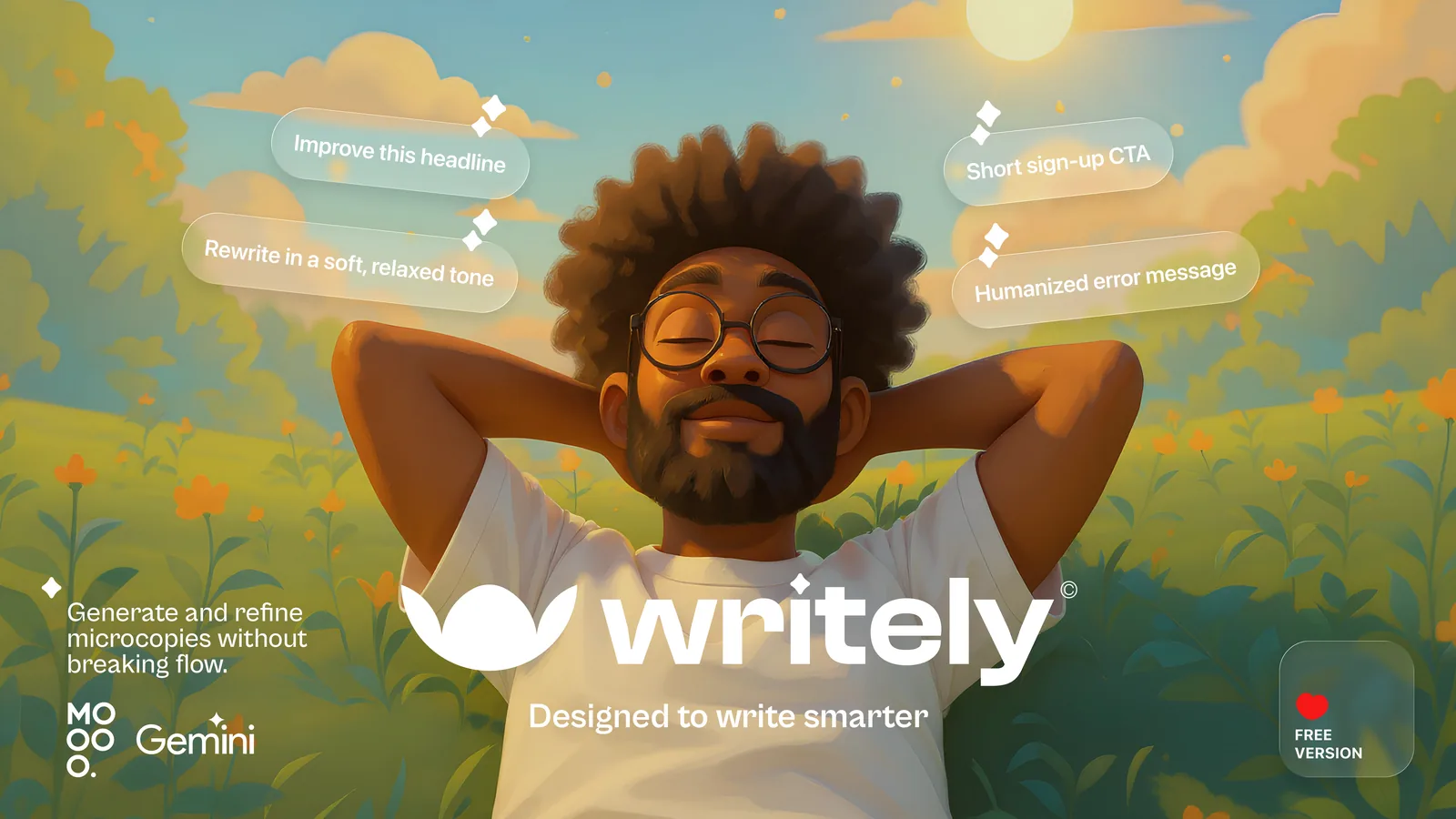
You paste your own Gemini API key, stored in Figma’s client storage; the plugin can only reach Google’s Gemini API. Settings links to where to get a key.
No sign-up or Writely server: the text goes from Figma to Gemini and back.
Select, refine, apply.
The solution
Two ways through the plugin, step by step.
Quick suggestions
Improve the text of a selected layer in a click.
The layer’s text replaced with the chosen version.
Open Writely
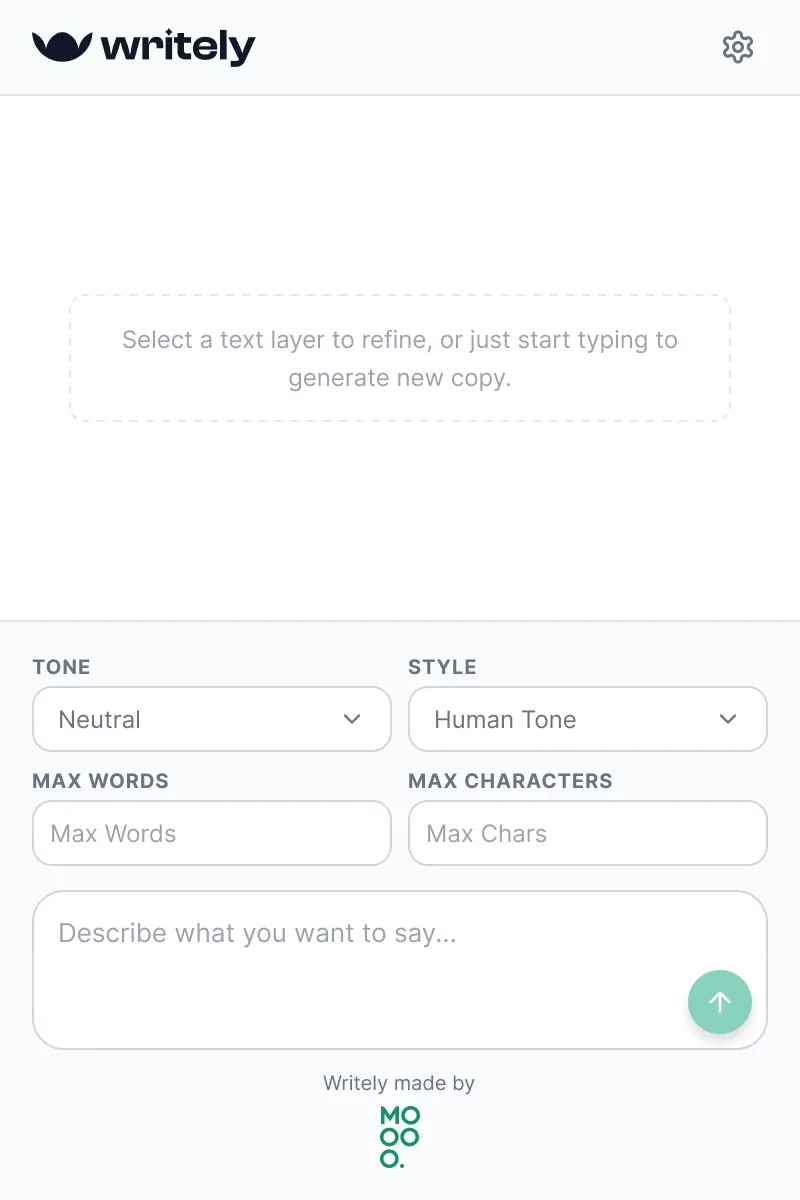
Without a selection, the panel says what to do: select a layer or start typing.
Select a text layer
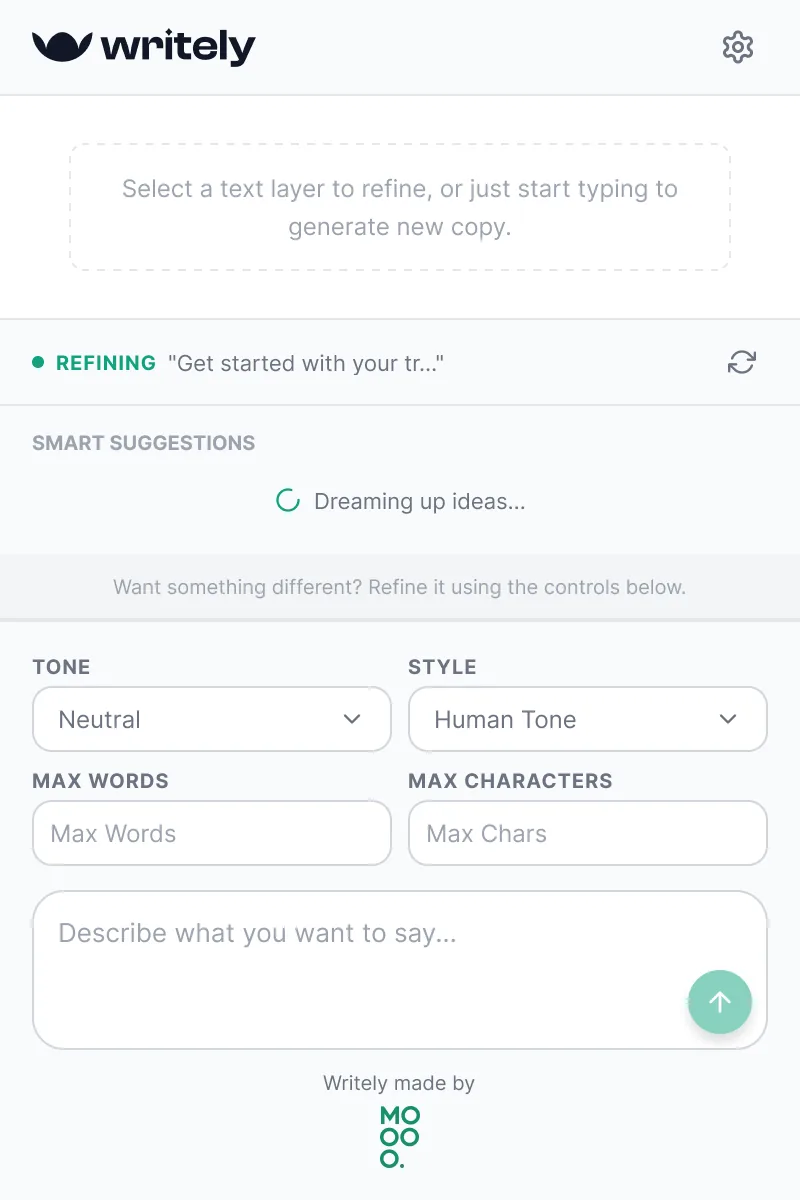
The Refining bar shows the text, and suggestions start loading.
Pick a suggestion
Three variations in the current tone, as chips.
Confirm
“Replace text with …?” Replace writes it into the layer.
Refine with an instruction
Get copy that follows a specific direction and fits the space.
New copy, written to the tone, style and limits, applied to the selection.
Set the controls
Tone, style and optional word or character limits.
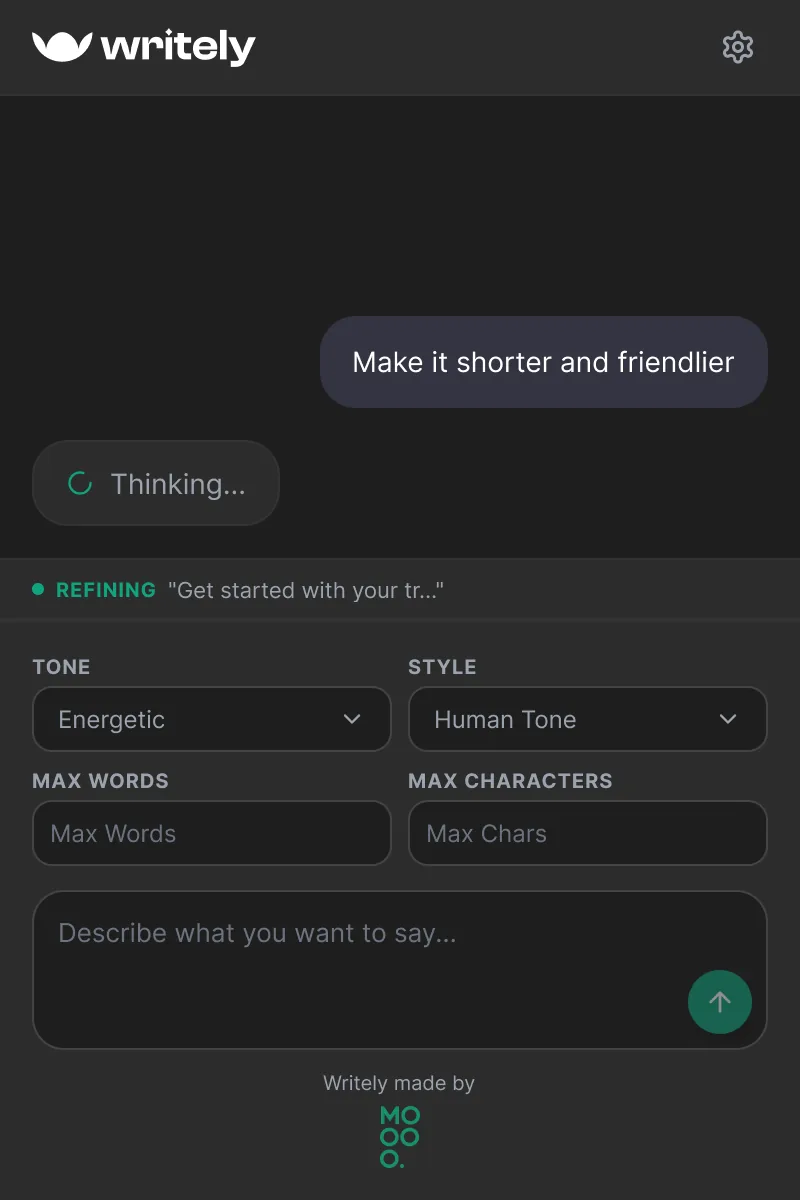
Describe the change
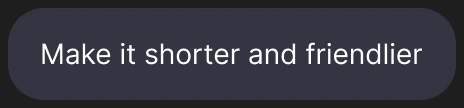
“Make it shorter and friendlier”, sent with Enter.
Apply the answer
Apply Selection replaces the layer’s text; the button then reads Applied.
If something’s missing
Clear, inline messages with the fix.
From friction to flow.
Solution validation
The three problems, traced through the finished panel.
Placeholder words → copy on the layer
Selecting a text layer loads three suggestions straight away, so real words replace placeholders while the layout is still being made.
Context switching → no copy and paste
The selected text is the context and Apply writes the answer back to the layer: better copy in 4 steps, without leaving Figma.
Unstated constraints → controls
Five tones, two styles, and word and character limits apply to every answer without being retyped.
Every state, in both themes.
Final experience
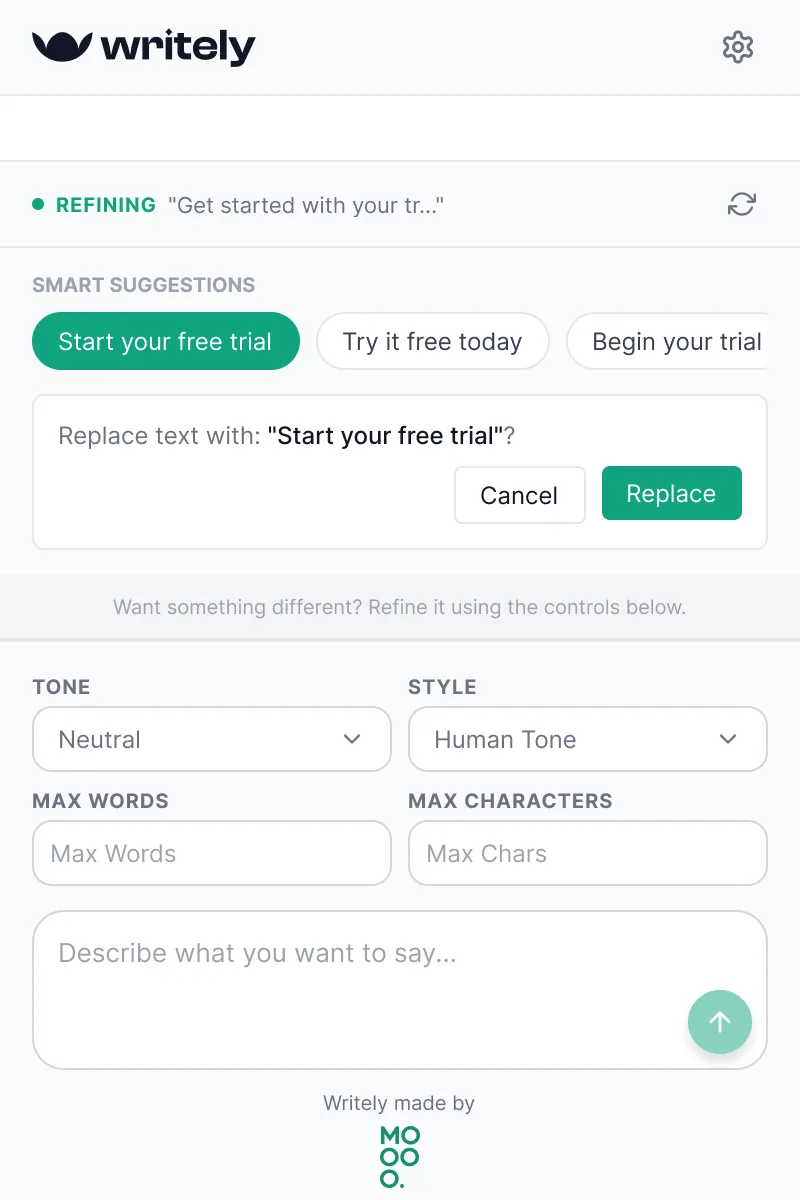
The plugin follows Figma’s theme, or a fixed light or dark one from Settings. Each state below shows dark and light side by side.
Empty
Guidance before anything is selected.
Generating
Suggestions loading for the selected layer.
Suggestions
Three options and a confirmation before replacing.
Thinking
The instruction sent; the answer on its way.
Answer
New copy with Apply Selection.
Errors
No selection, and no API key yet.
Settings
Appearance, suggestions and the Gemini key.

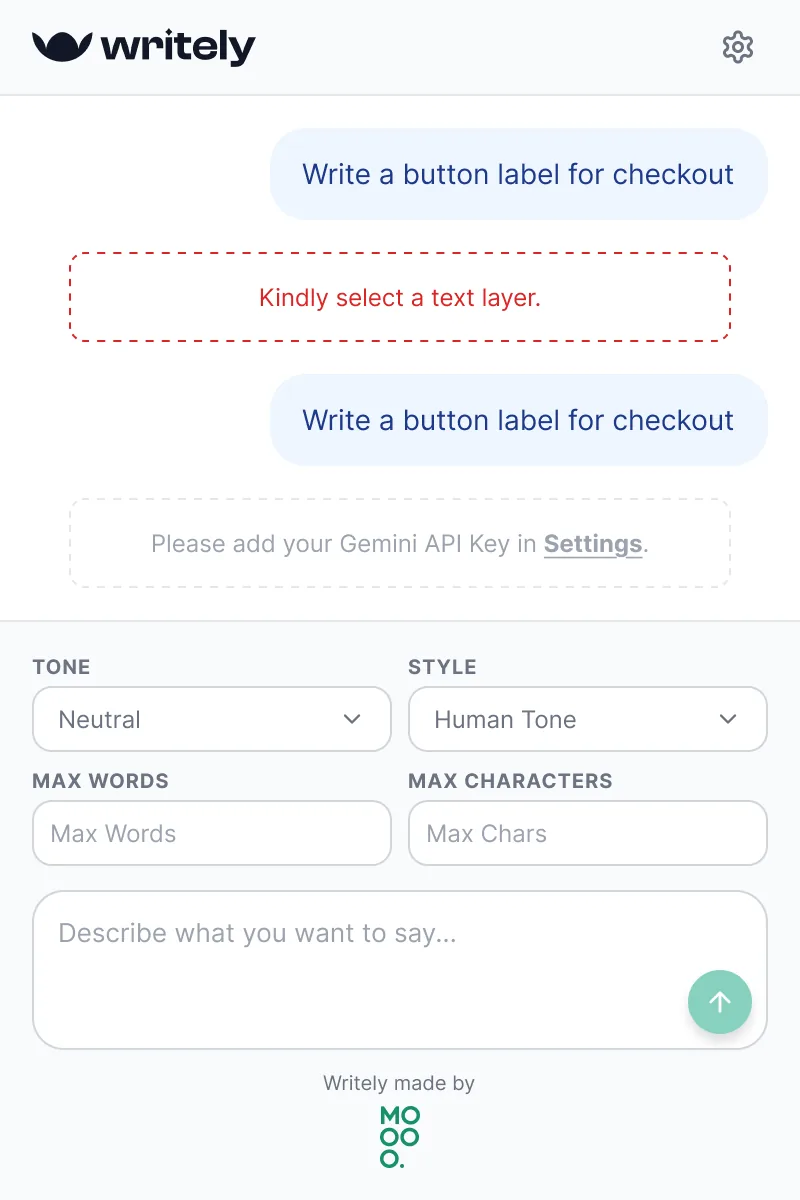
Designed to write smarter.
Launch
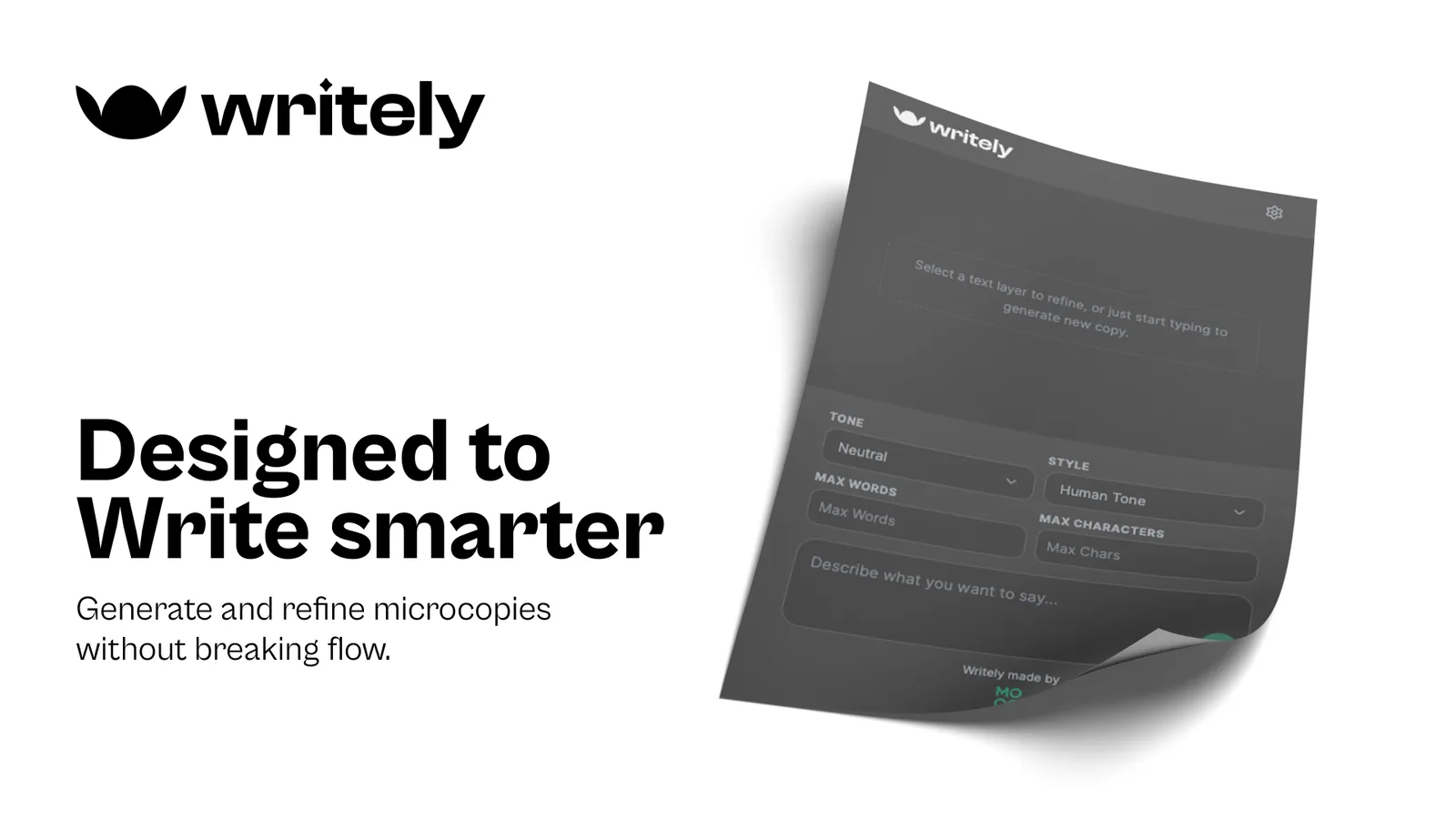
The launch: the promise in one line, and the plugin as it looks when it opens.
Generate and refine microcopies without breaking flow
The panel, at launch
The plugin, screen by screen.
Every screen
14 screens: seven states in each theme. Select one to see it larger.
Dark
Light
Neutral panel, one green.
Design system
Figma-like greys keep the panel quiet beside the canvas; a single green marks what moves the work forward: the selection, the chosen suggestion, Send, Save and Apply.
A lowercase, rounded wordmark and a mark like a smile: friendly, as copy should be.
One set of tokens, in dark and light.
Background
Panel and conversation; #FFFFFF in light.
Surface
Header, controls and cards; #F9FAFB in light.
Text
Primary text; #111827 in light.
Secondary
Labels and hints; #6B7280 in light.
Accent
Selection dot, chosen chip, Send, Save, Apply; hover #1A7F64.
Your message
Instruction bubbles; #EFF6FF in light.
Error
The no-selection message; #DC2626 in light.
Inter throughout, from the 14 px conversation down to 10 px uppercase labels, sized for a 400 px panel.
Inter
Interface
Message
View title
Section label
Simple line icons with one 2 px stroke throughout.
The building blocks of the panel.
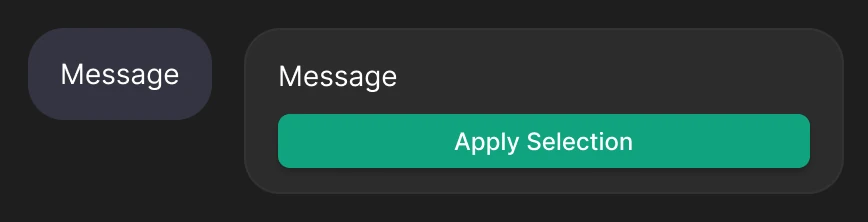
Conversation
Your instruction, and an answer with Apply.
System messages
A hint, and an error.
Apply button
Apply Selection, Applied, Select text layer first.
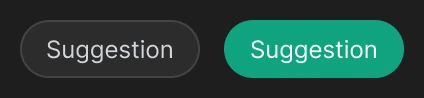
Suggestion chip
Default and chosen.
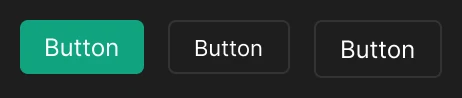
Buttons
Primary, secondary and outline.
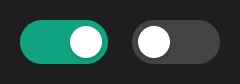
Toggle
On and off.
Fields
Select and number input.





The design, counted.
Scope
Plugin states
Themes
Tones
Suggestions per layer
Copy, written where it lives.
Results & impact
What the finished plugin changes in the way interface copy gets written.
Fewer steps to better copy
Quick suggestions take 4 steps from selection to applied text, with no prompt to write.
Safe by default
Every replacement is confirmed first, and nothing in the design changes until the designer chooses.
Constraints built in
Tone, style and length are set once and respected by every suggestion and rewrite.
Private and lightweight
Your own Gemini key stays in Figma’s client storage: no account and no Writely server.
How success shows up
Suggestions applied straight to layers, and fewer placeholder strings left when a design is handed off.
Copy, designed with the layout.
Closing reflection
Writely moves UX writing from the end of the process to the moment a layout is made: the real words are written on the real layer, at the right length, in the product’s voice, without leaving Figma. It’s published on the Figma Community.
- The selection is the best prompt: once the tool knows the text, the designer only has to say what should change.
- Fast default help (three suggestions) and precise help (an instruction) serve different moments; both earn their place in one panel.
- Anything that writes into a design needs a clear, reversible-feeling step: confirm, then apply.
- A 400 × 600 plugin panel with seven states, each in dark and light.
- Two complete flows: quick suggestions and instruction-based refinement.
- The wordmark, components and launch artwork for the Figma Community.
- The working plugin, designed and built by MOOOO.